Measurement of height or length in the image
Quick measurement on the image using a known quantity. You can easily measure the height or length of unknown quantities.
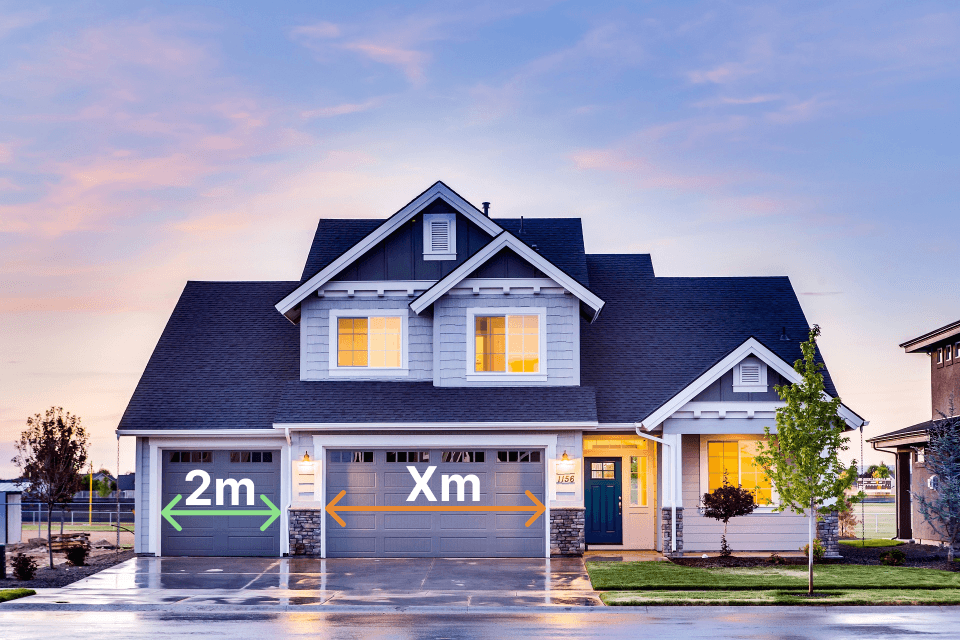
How to make a measurement on an image?
Upload the image to the application
The upload happens only in your browser. We do not upload your image to the server. We do not store the files you upload in any way.
Specify the known size in the image
To do this, two actions need to be performed. First, mark two points on the image itself. Second, specify the length and units of measurement.
Specify two points for the unknown size
You can specify any number of pairs. Note that measurements will be accurate if the measured objects and the base value are in the same plane. That is, measurements will be more accurate for objects that are at the same distance from the lens.
Measurement Tools
Four tools to measure any shape in your image
Straight Line
Click two points to measure the direct distance between them. Ideal for heights, widths, or any straight-line distance.
Polyline
Click to place multiple connected points that trace a path. Measures the total length of curved routes, perimeters, or complex shapes.
Circle
Click to set the center, then click the edge to define the radius. Instantly shows the radius, diameter, and circumference.
Rectangle
Click two diagonal corners to define a rectangle. Shows width, height, perimeter, and area measurements.
When and how does it work?
When it works well
Measuring sizes on an image using proportion works very well when the photo is taken from the front or side with little distortion. If the object is flat and the camera is straight, the proportions stay accurate.
It also works well when you use clear reference points, for example a door, a window, or a ruler placed in the photo. This method is very useful for technical images, product photos, construction plans, and any situation where the scale is easy to set.
When it works poorly
This method works poorly when the photo has perspective distortion, for example when the camera is at an angle or too close to the object.
Wide-angle or phone camera lenses can also make lines curve, which breaks the proportion. If the reference size is not exact, all other measurements will be wrong too. Proportional measuring also does not work well with 3D objects taken from a single photo, because depth changes the scale.
Architects
Measure building parts or floor plans from images when drawings are not scaled.
Construction Workers
Estimate wall height, window size, or distances on site photos before starting work.
Engineers
Quickly check dimensions of machines or structures using only a reference size.
Interior Designers
Measure furniture or room elements on photos to plan layouts and space usage.
Frequently Asked Questions
How accurate is measuring on an image?
Accuracy depends on the photo quality and how it was taken. When the photo is taken straight-on with minimal lens distortion and you use an accurate reference size, measurements can be very precise. Perspective distortion and wide-angle lenses reduce accuracy.
Is my image uploaded to a server?
No. All image processing happens entirely in your browser. Your photos are never uploaded to any server. We do not store, collect, or have access to any images you use in the application.
What units of measurement are supported?
You can use any unit of measurement you want — centimeters, inches, meters, feet, pixels, or any custom unit. Simply enter the known distance in your preferred unit when calibrating, and all measurements will be calculated in that same unit.
Can I measure on a photo from my phone?
Yes. The application works in any modern mobile browser. You can take a photo with your phone camera and immediately open it in the app to start measuring. The touch interface supports pinch-to-zoom for precise point placement.
How does proportional measurement work?
You first mark two points on an object with a known size in the image and enter that real-world distance. The app then calculates a scale ratio. When you place new measurement points, it uses this ratio to convert pixel distances into real-world measurements proportionally.